Open this app from Shopify admin so we can identify your store.
Enable Shopify POS with Receipt Configurator
Required
~1 min
▾
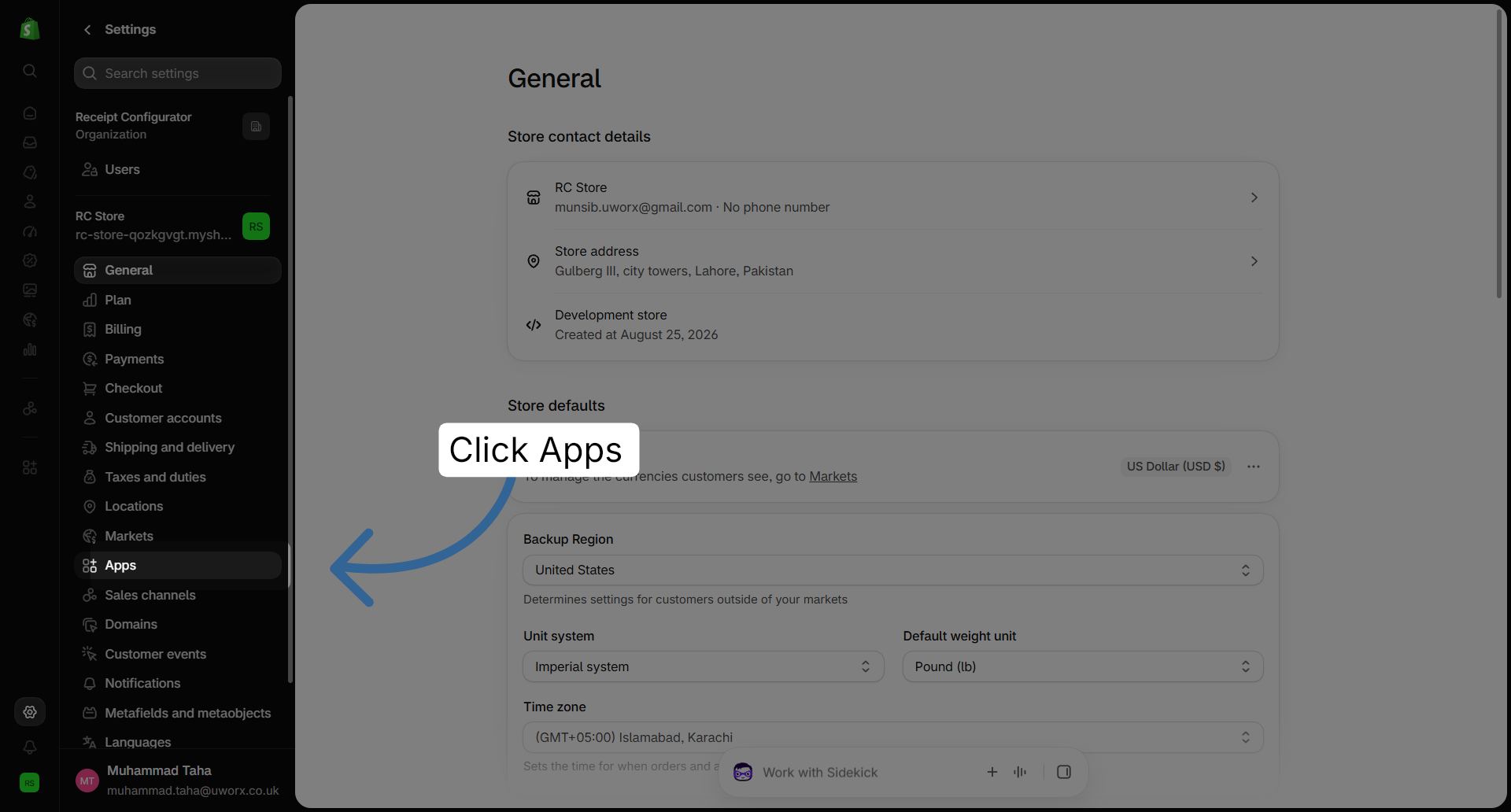
1
Open Settings → Apps
In Shopify admin, go to settings and select apps.
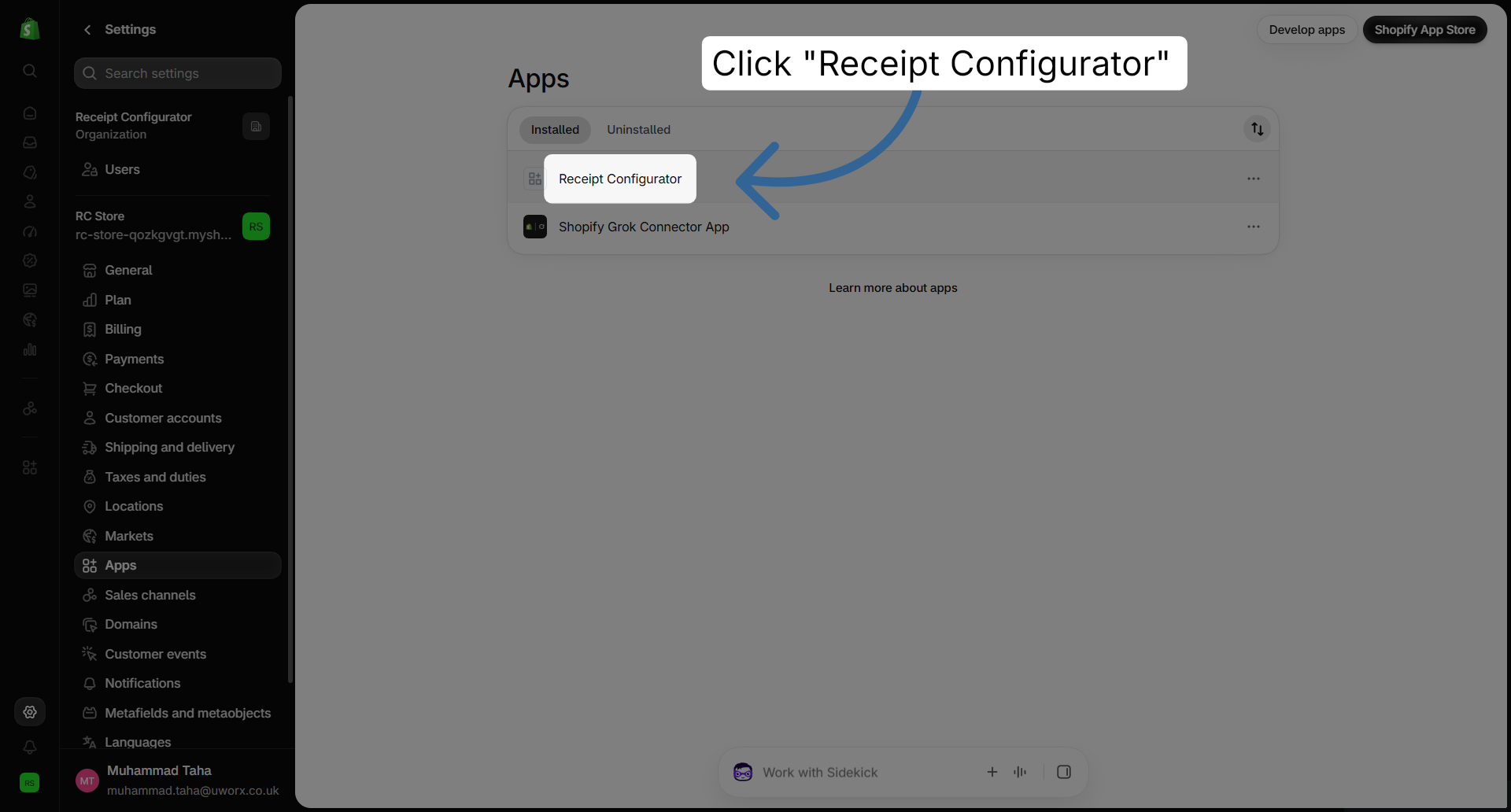
2
Open Receipt Configurator
Under installed, open the Receipt Configurator app.
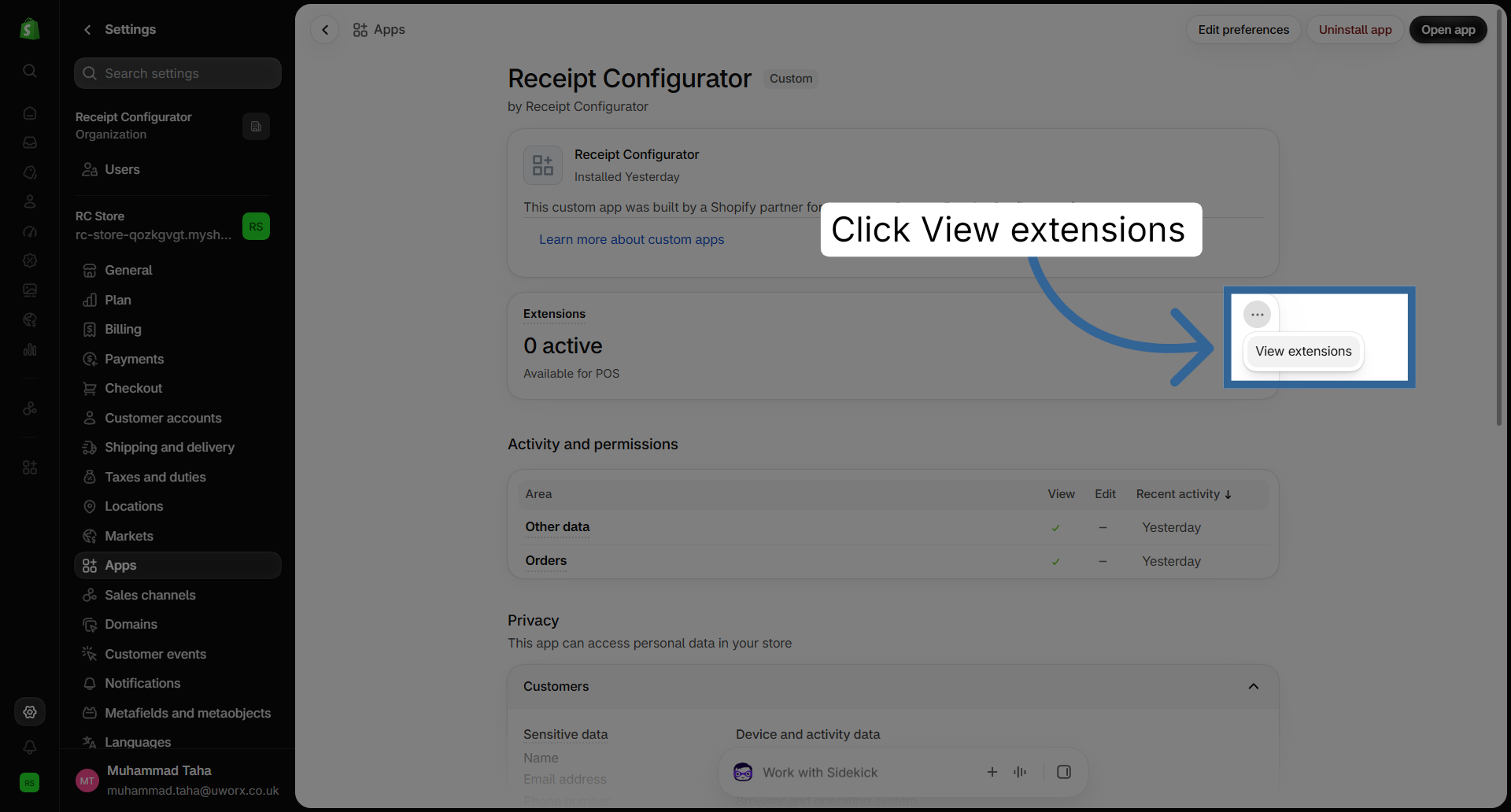
3
View extensions
In extensions, open the menu and choose view extensions.
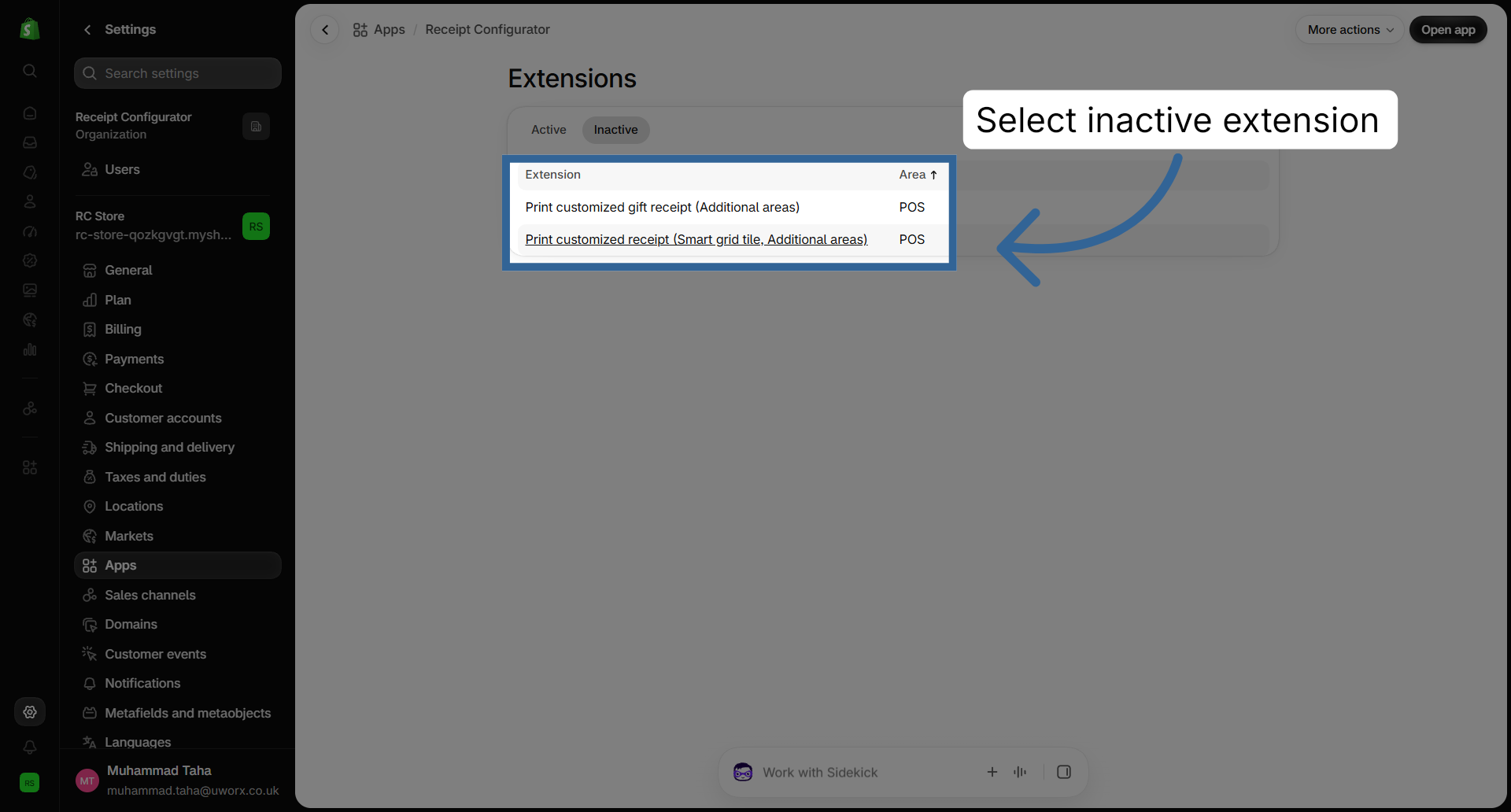
4
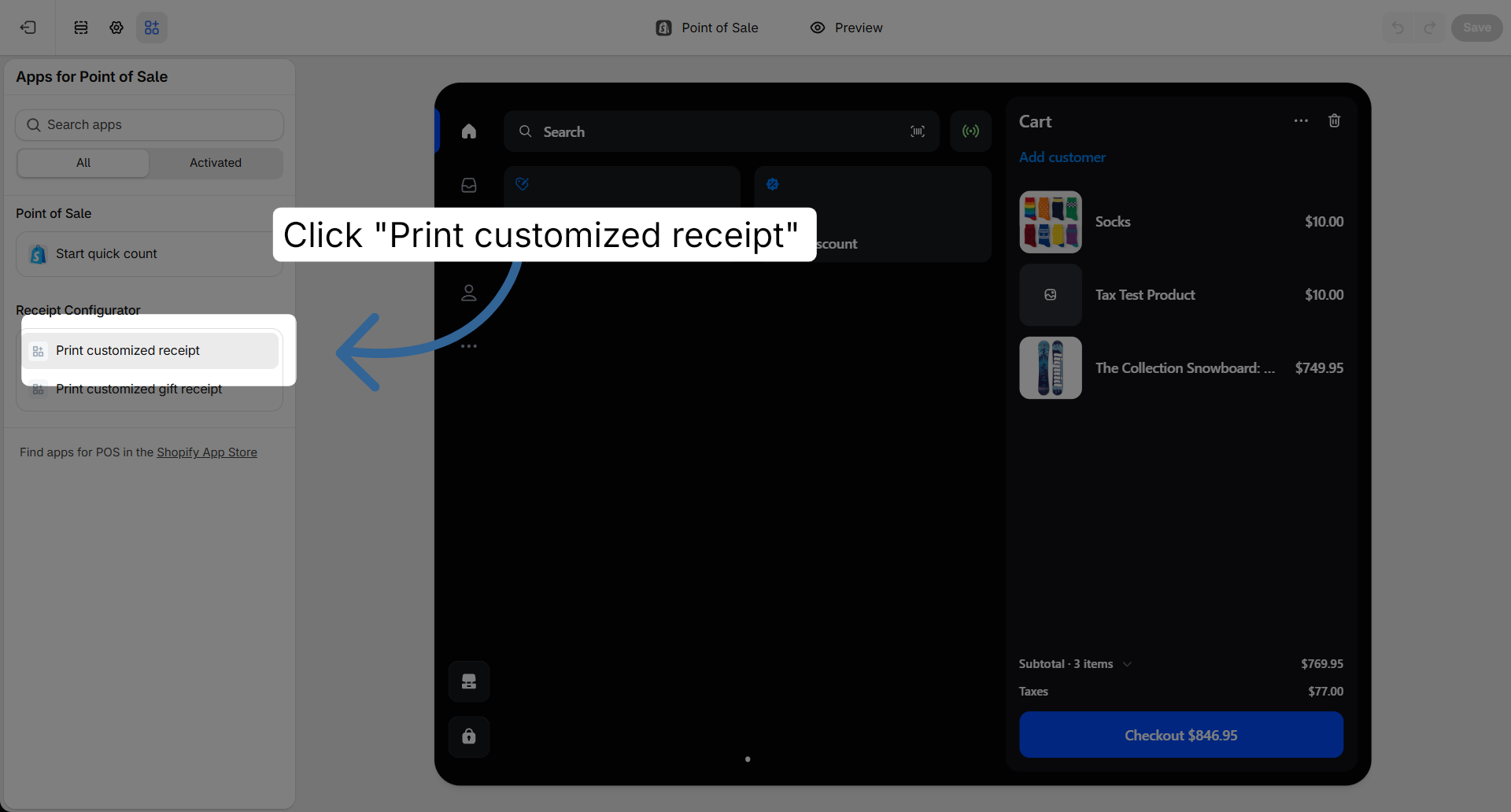
Select the POS extension
Open each inactive POS extension: print customized receipt, then print customized gift receipt.
5
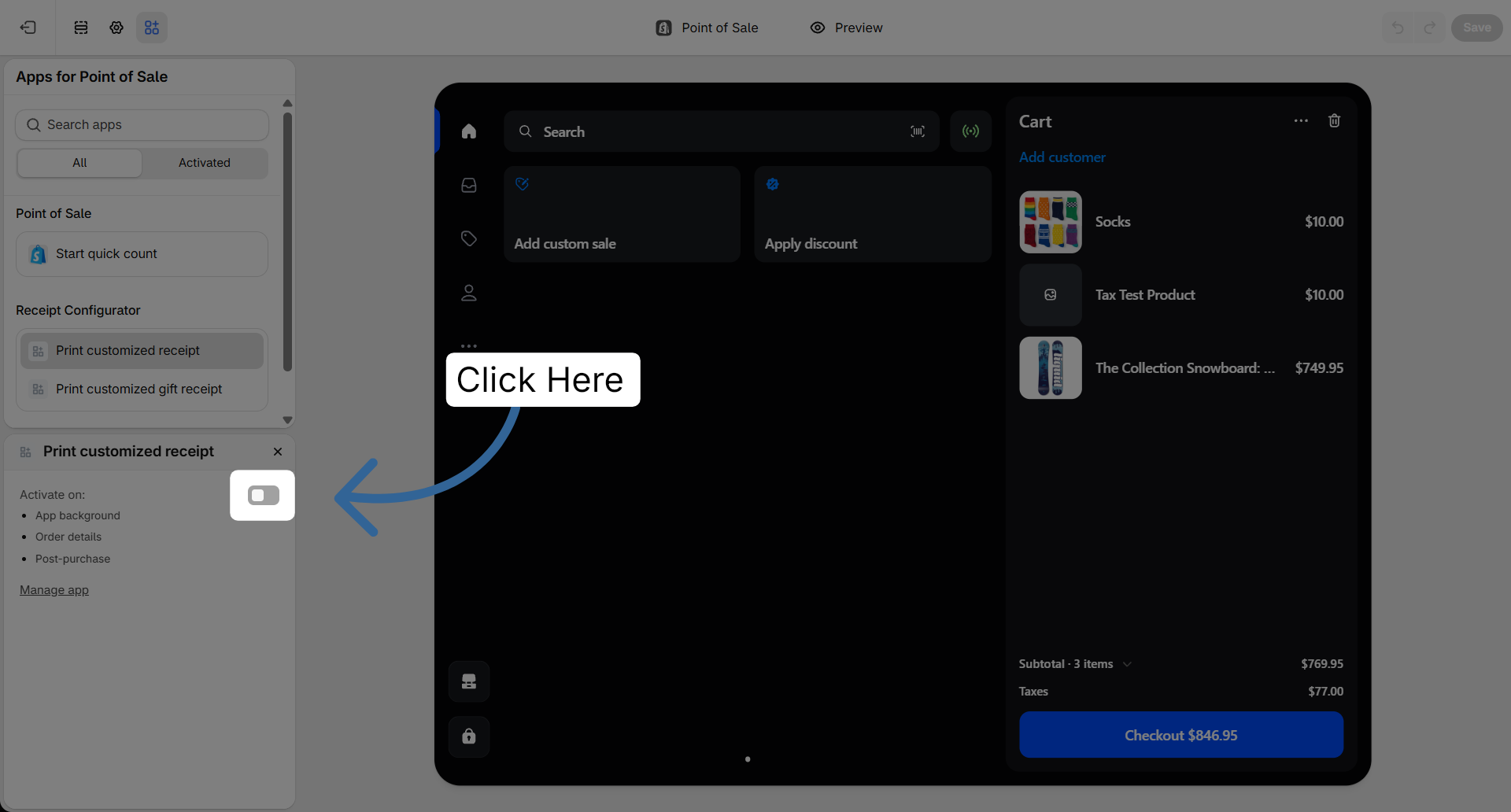
Turn on Print customized receipt
Select print customized receipt and turn it on.
6
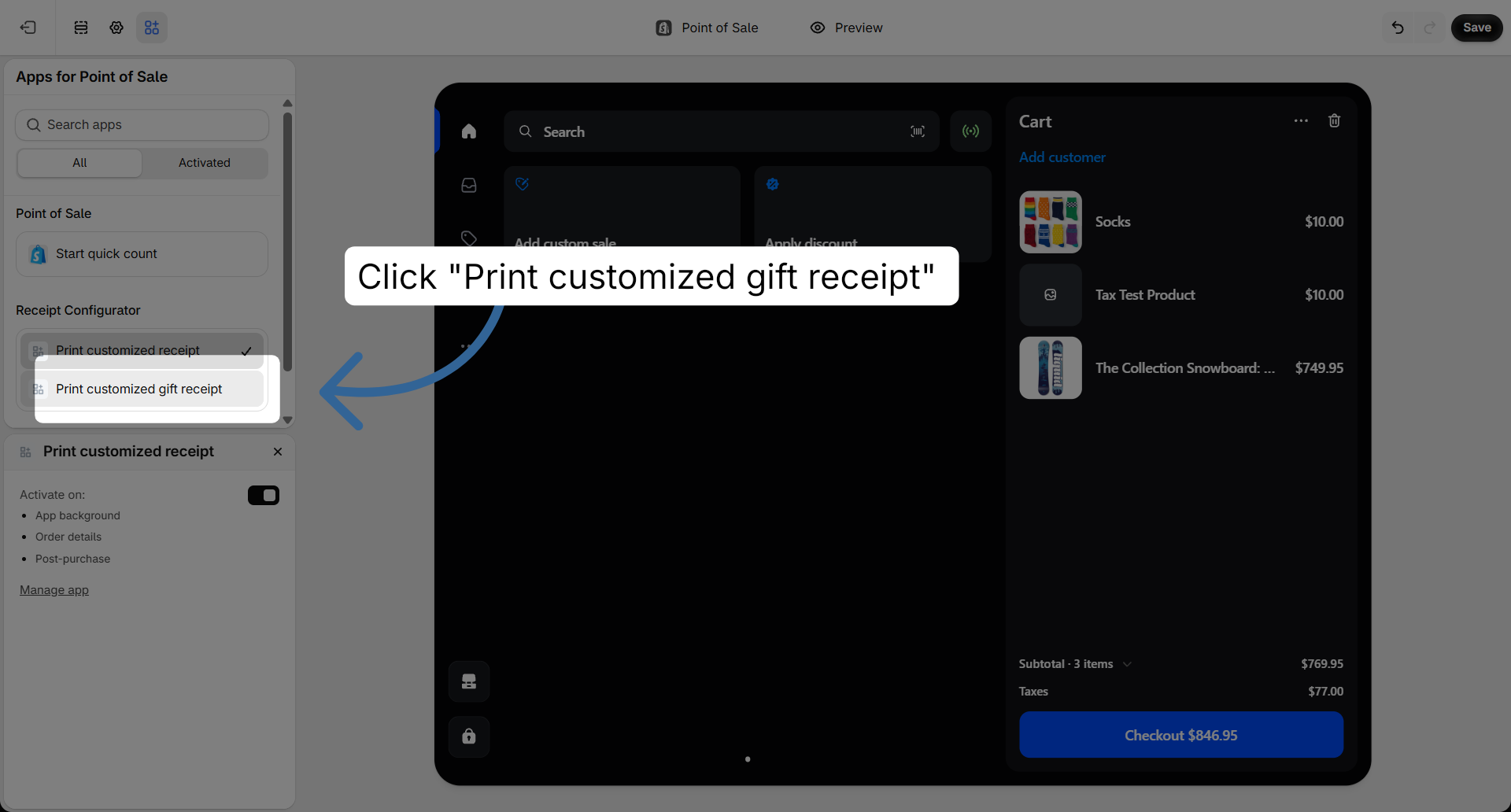
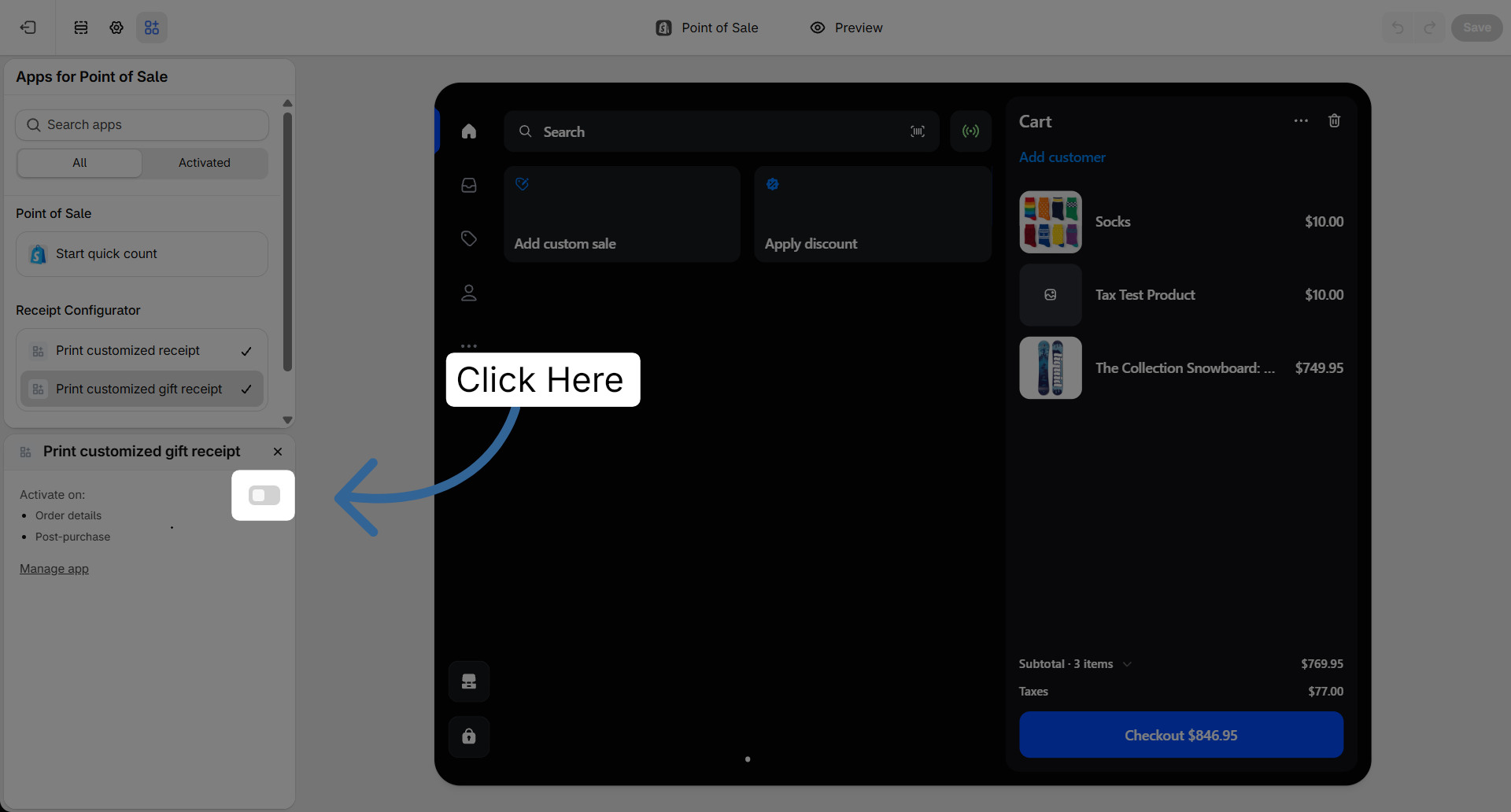
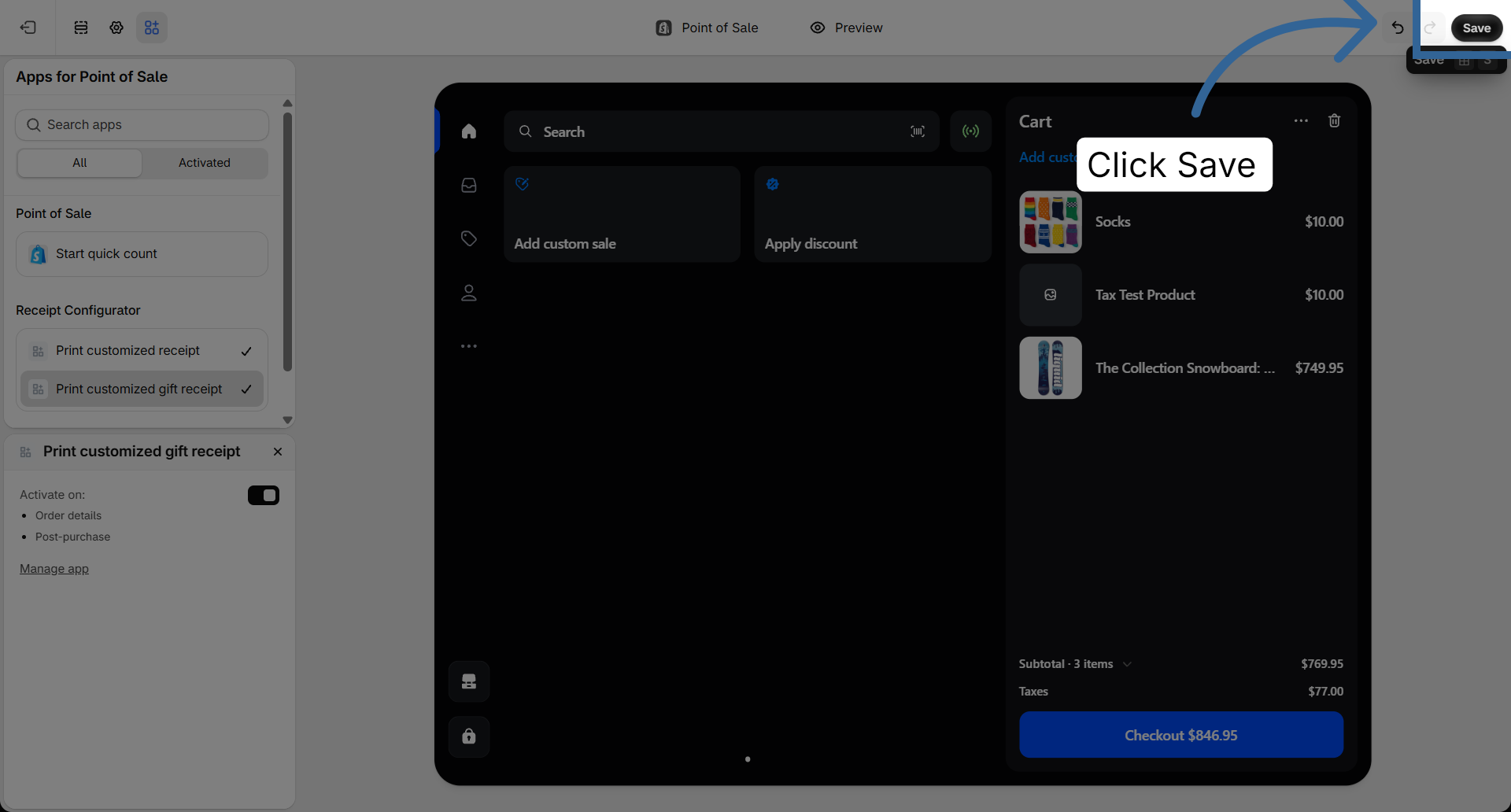
Turn on print customized gift receipt
Select print customized gift receipt, turn it on, then save.
Disable Shopify Receipt Auto-Printing
Recommended
~1 min
▾
1
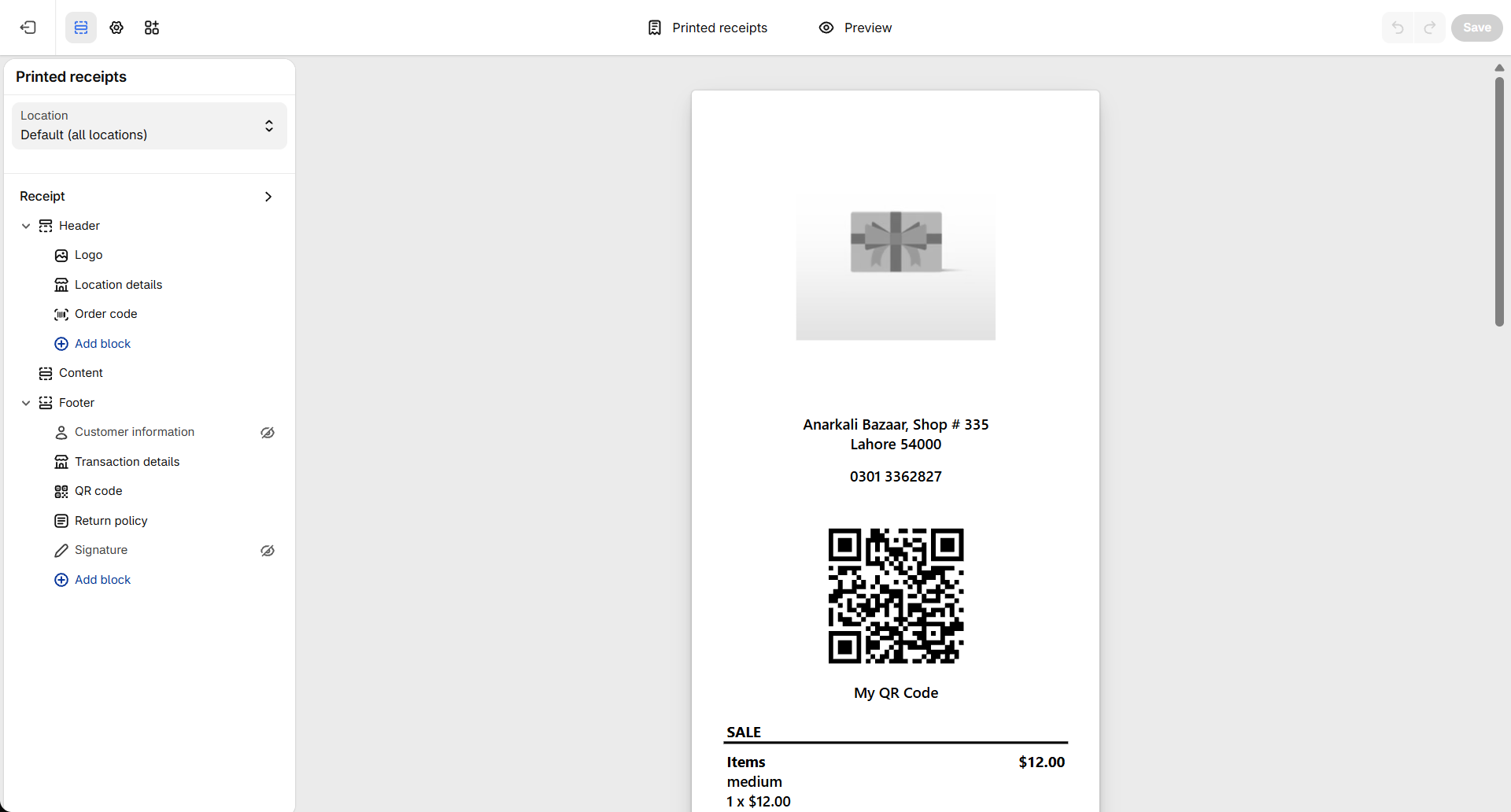
Open receipt settings
Point of sale must already be installed.
2
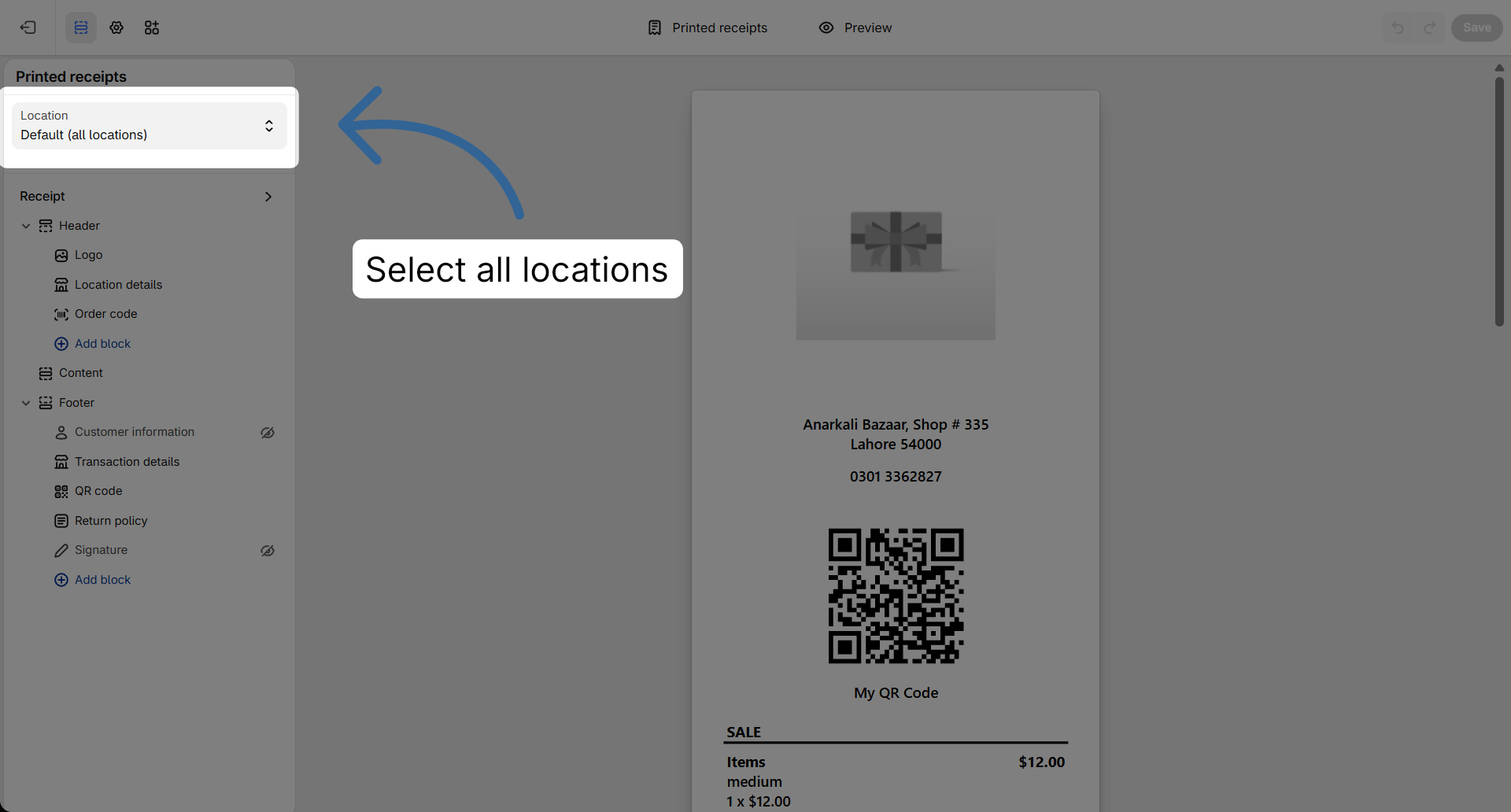
Set location to All locations
Make sure the location is set to default (all locations).
3
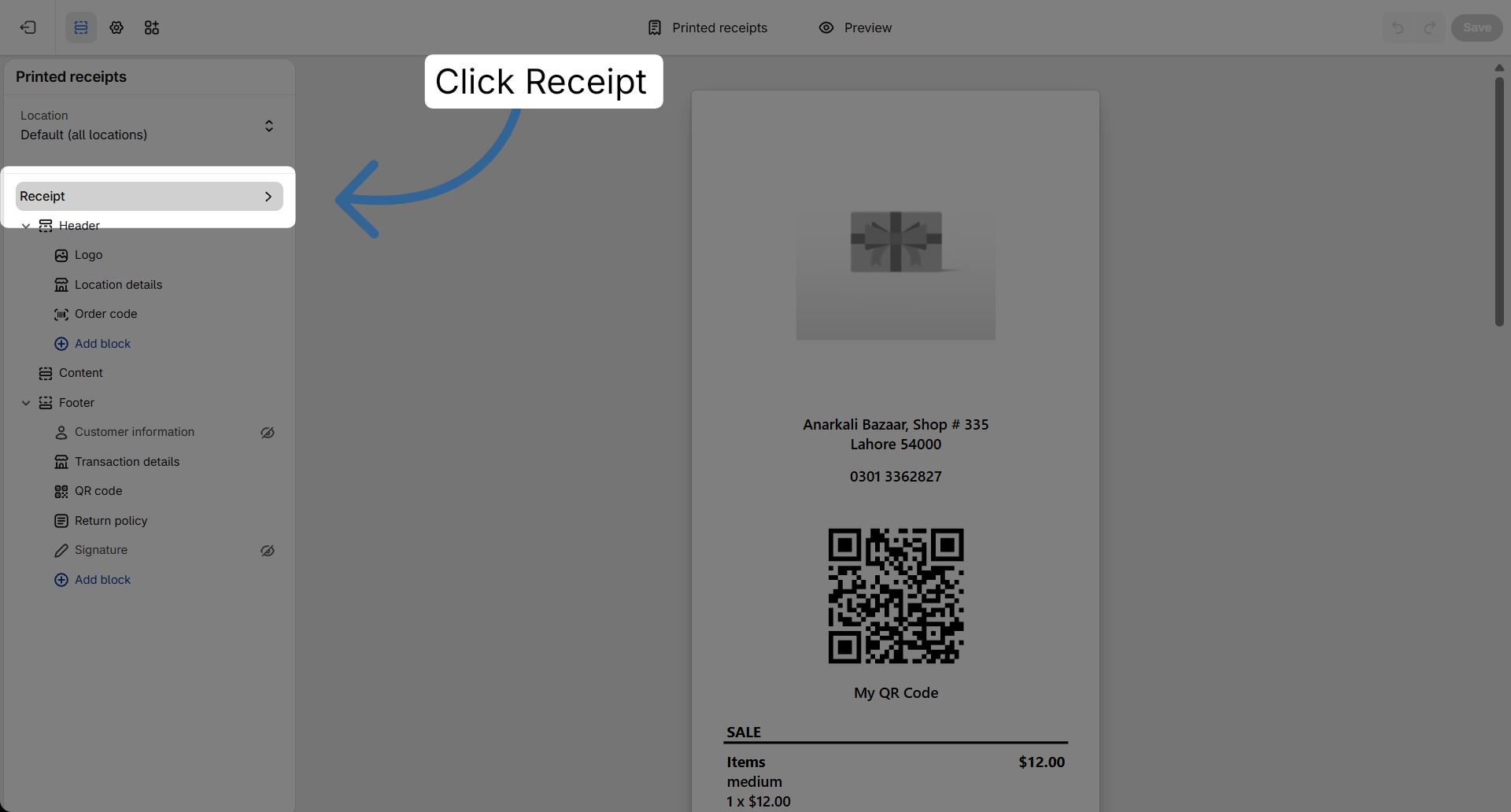
Select Receipt
In the left tab, click receipt if it is not already selected.
4
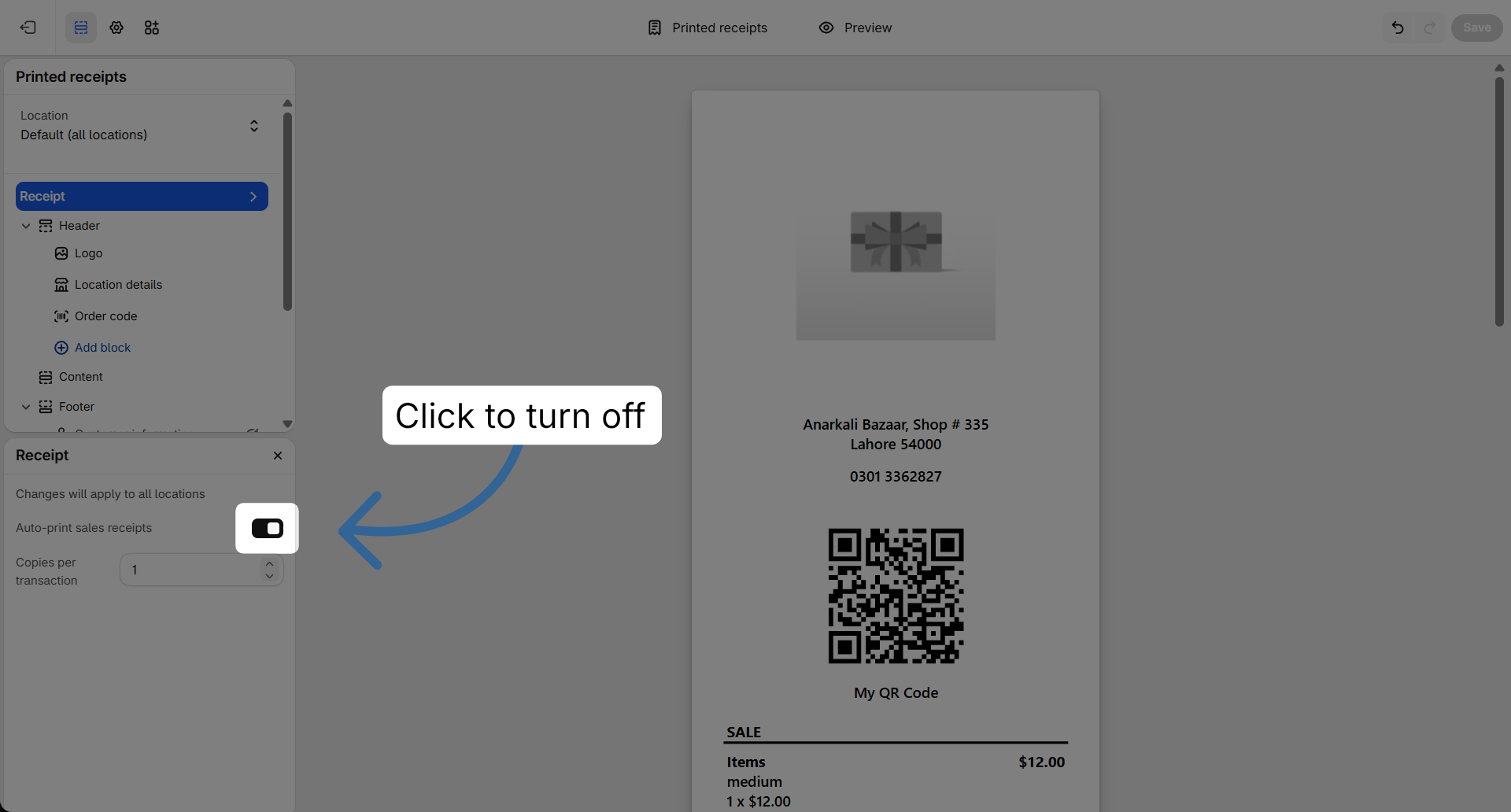
Turn off Auto-print
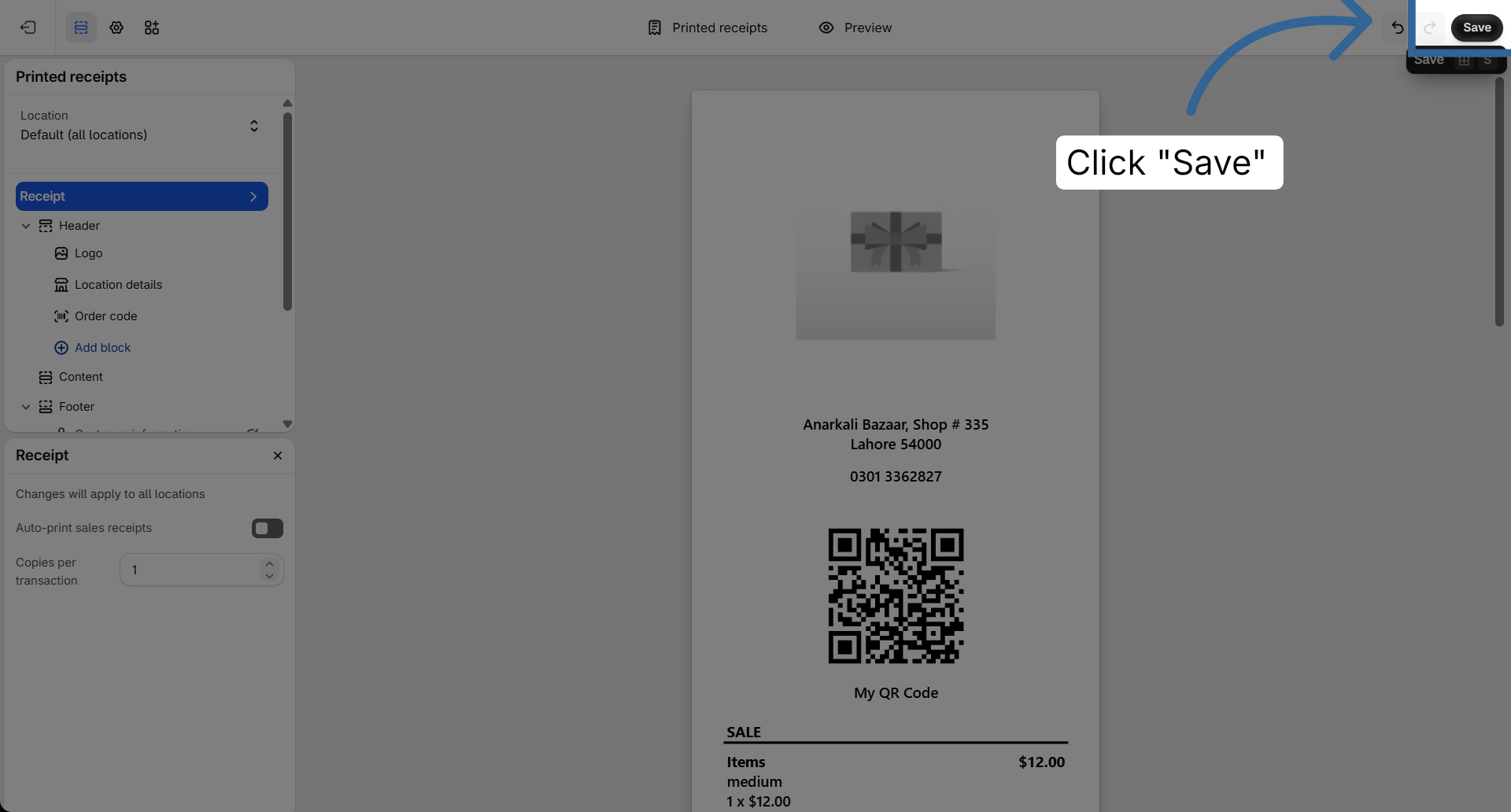
Turn off auto-print sales receipt for all locations, then save.
Return and Exchange Receipt Auto Printing
Recommended
~1 min
▾
1
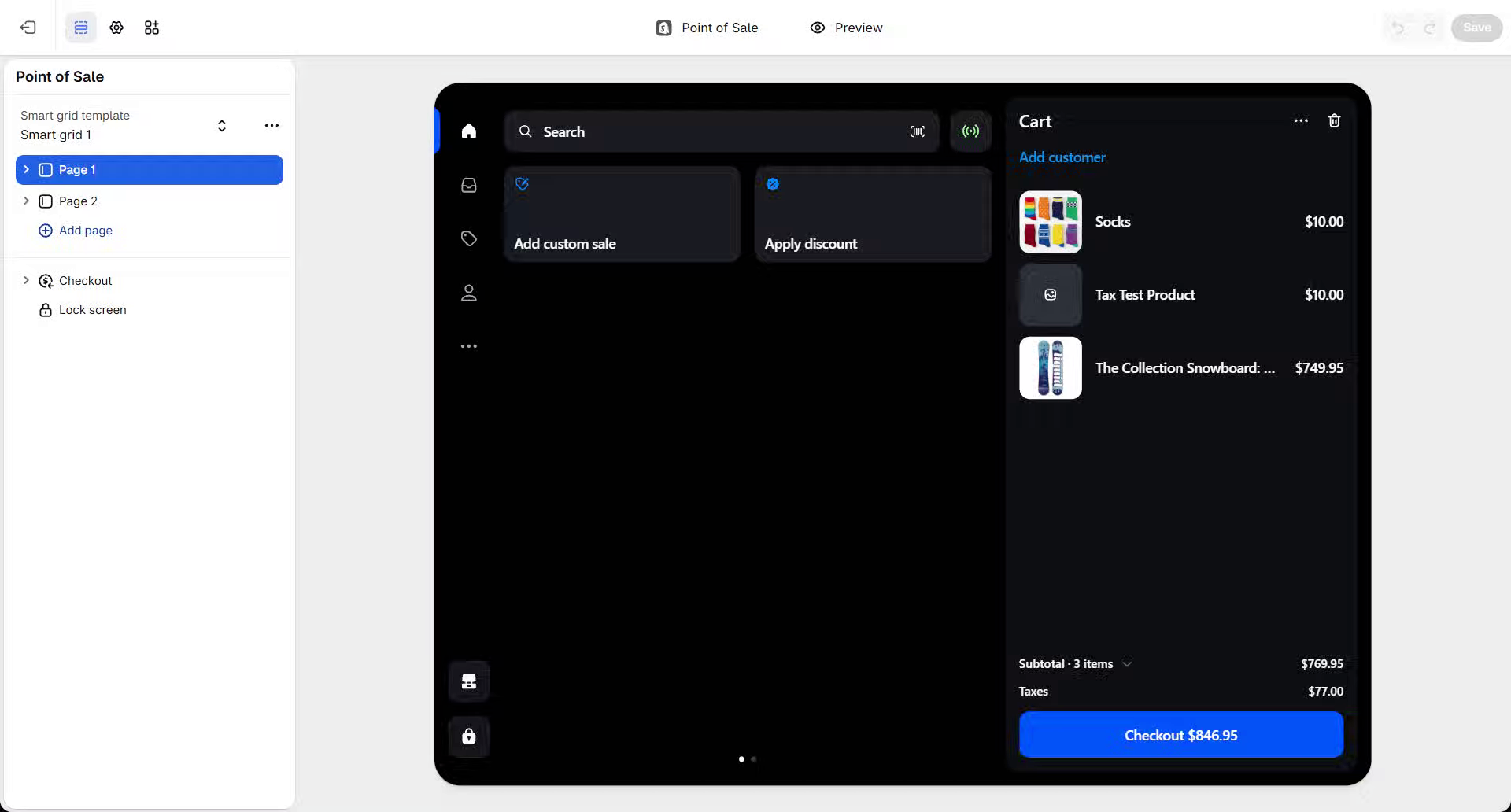
Open POS settings
Point of sale must already be installed.
2
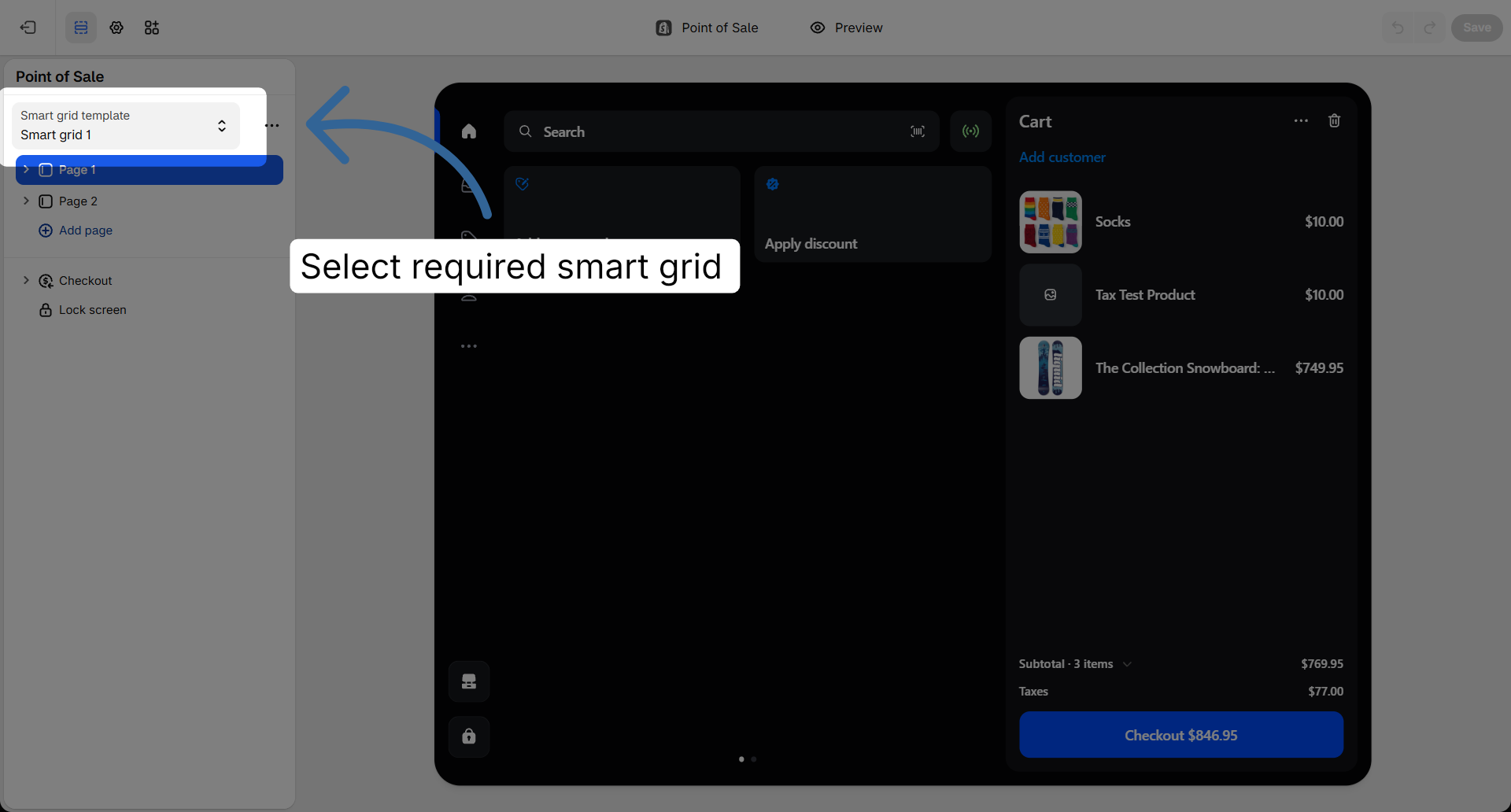
Select the smart grid
Select the smart grid template for all locations.
3
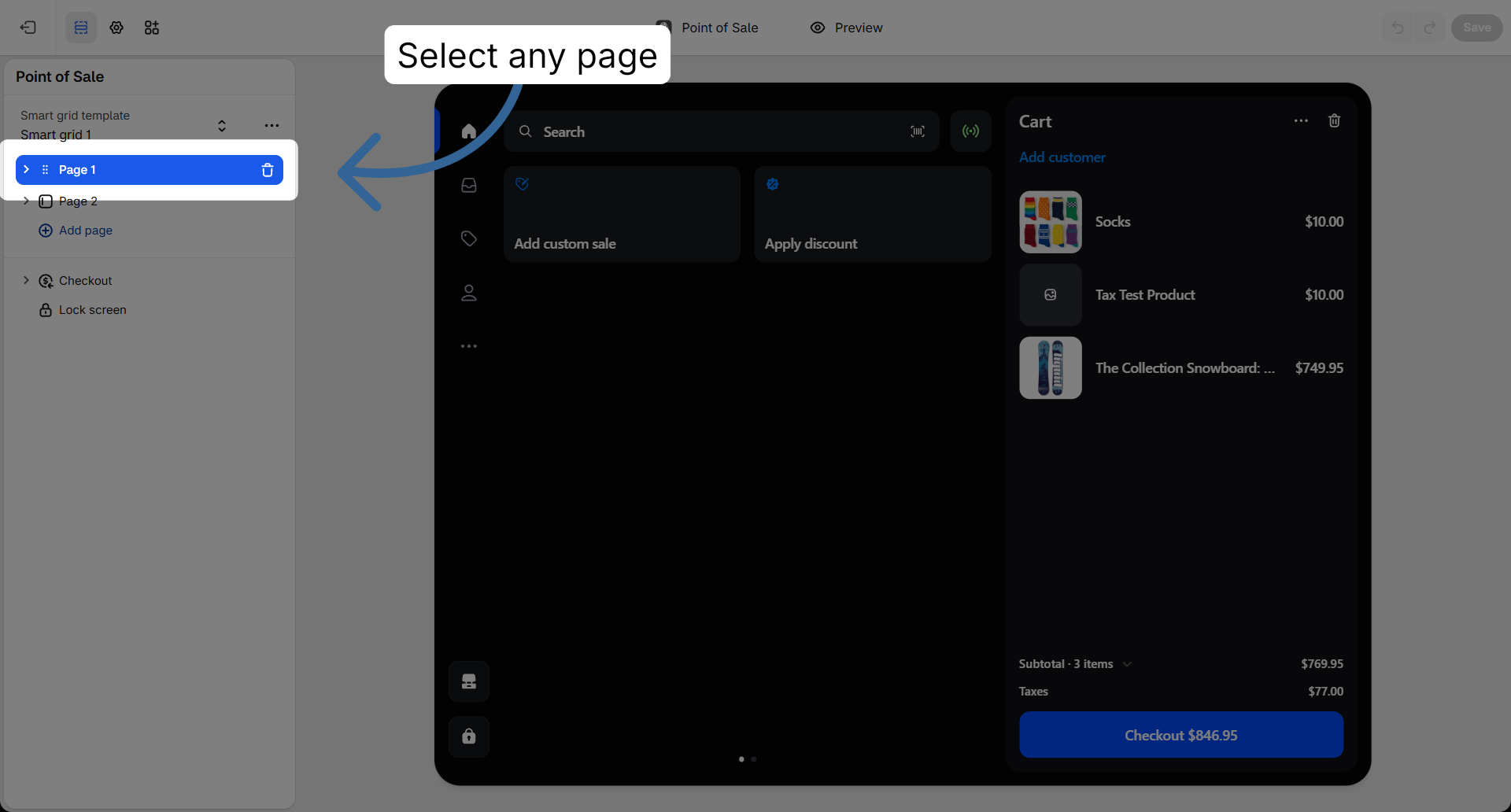
Select the page
Select the required home page.
4
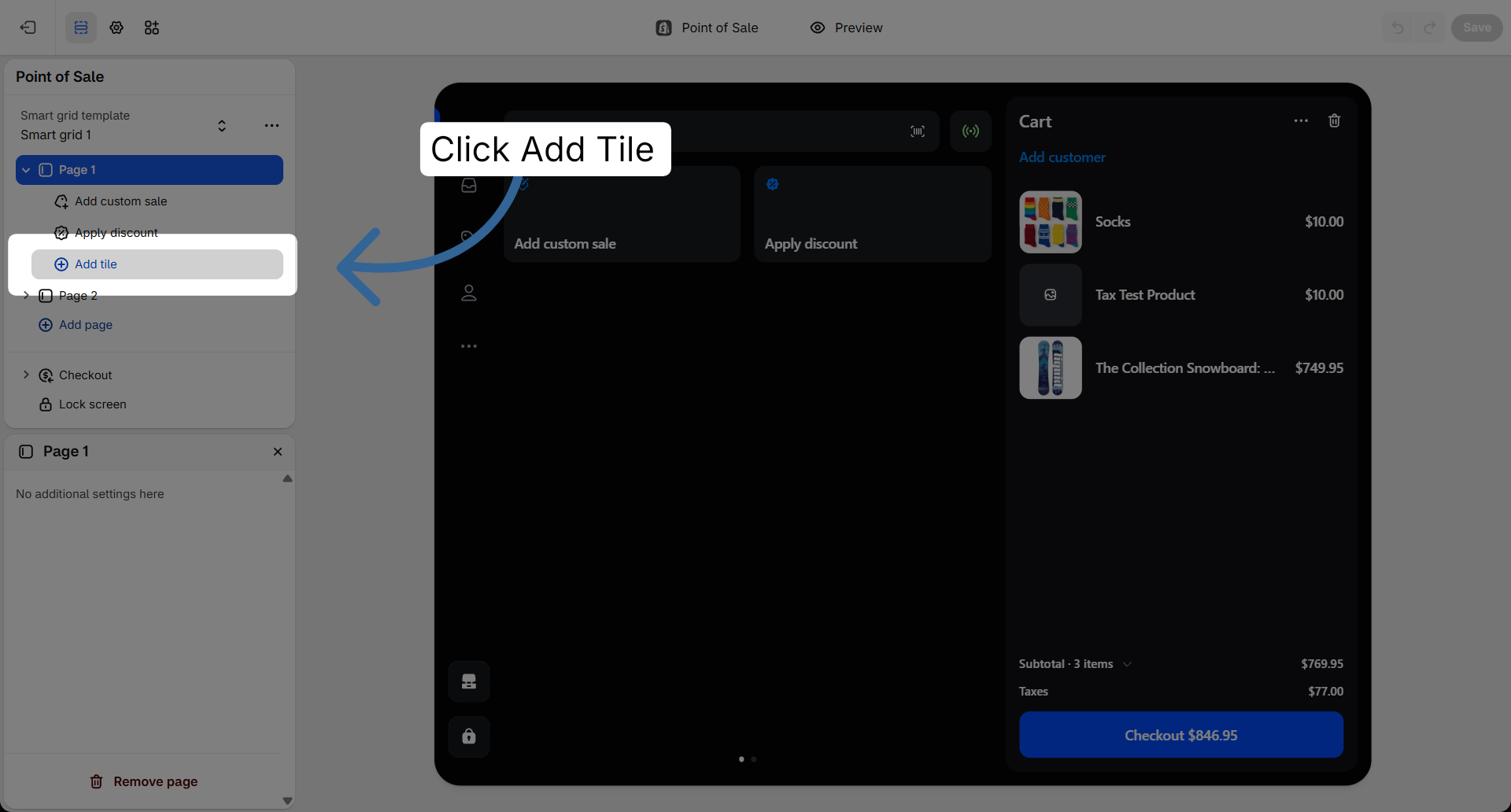
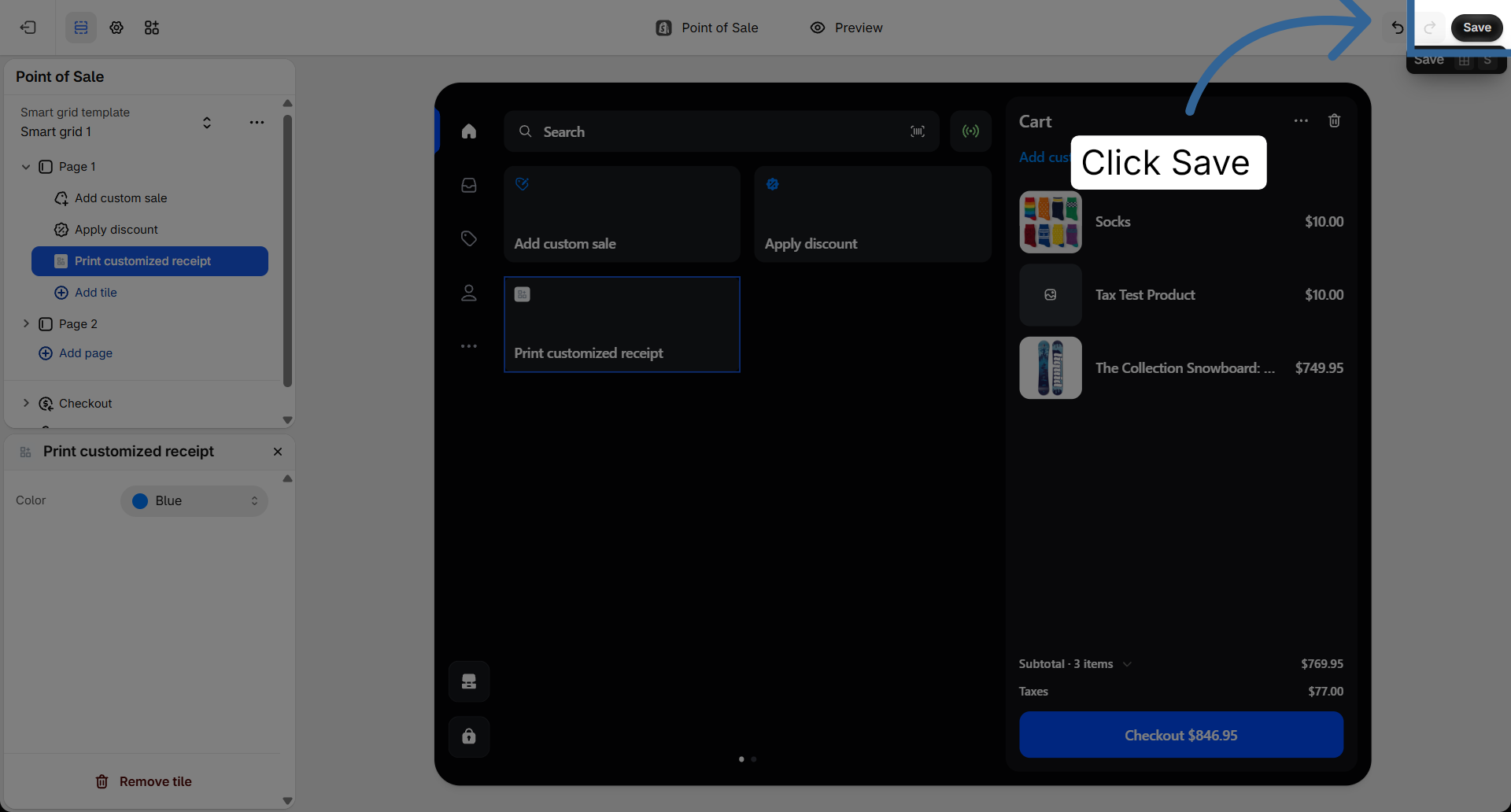
Click Add tile
Click add tile on the selected page.
5
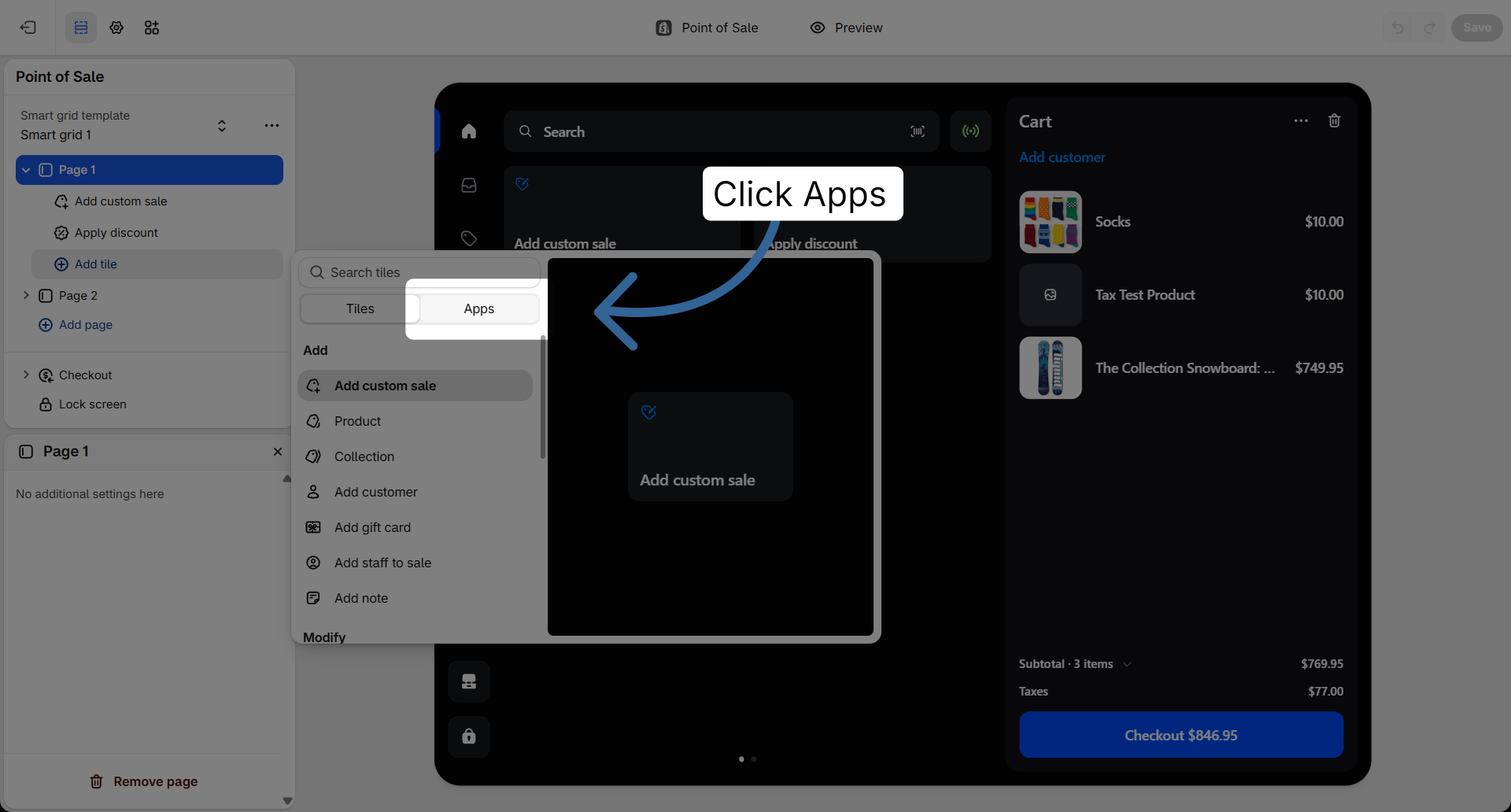
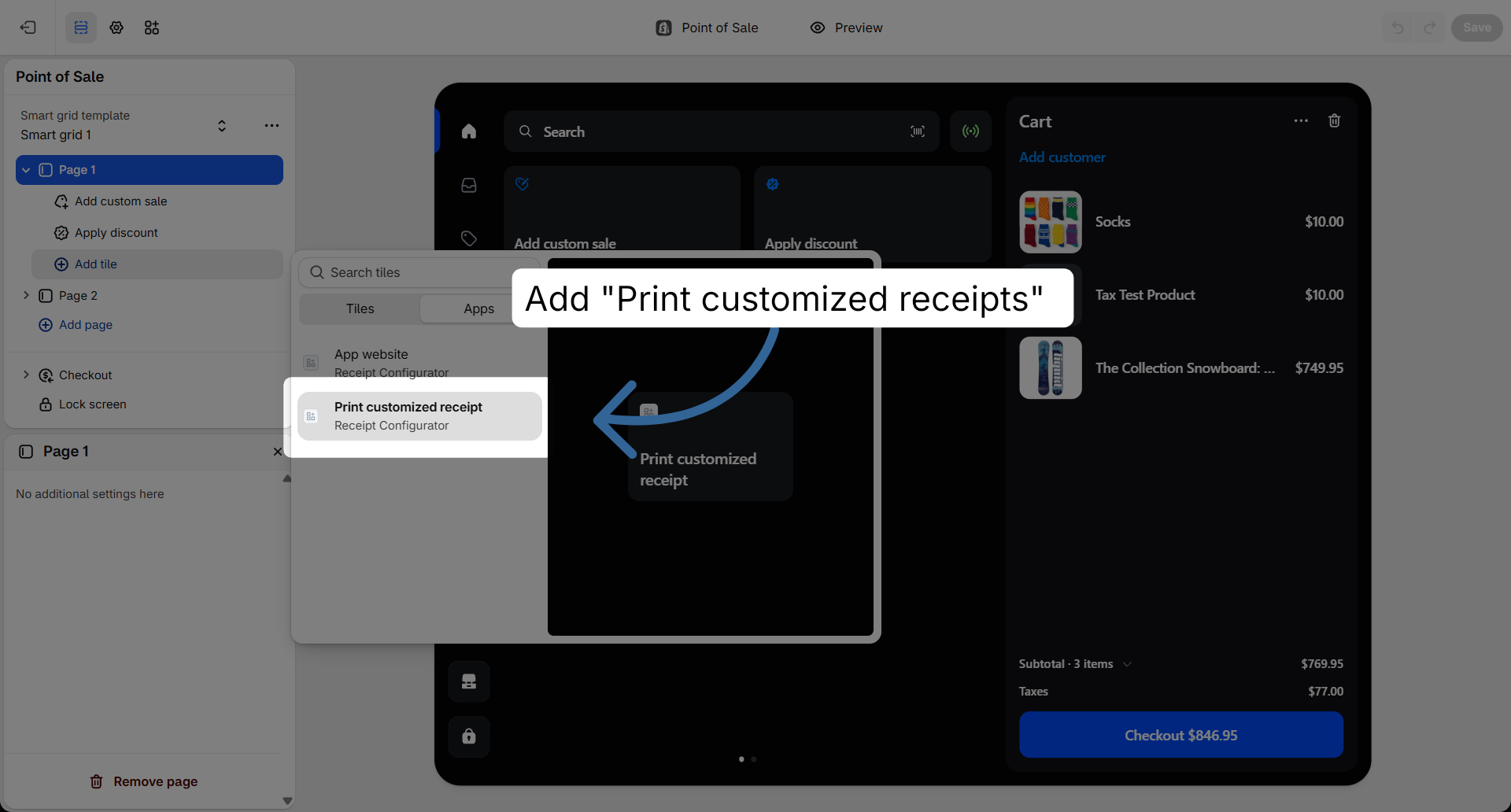
Add Print customized receipt
From apps, add print customized receipt, then save.
Setup step
Close